

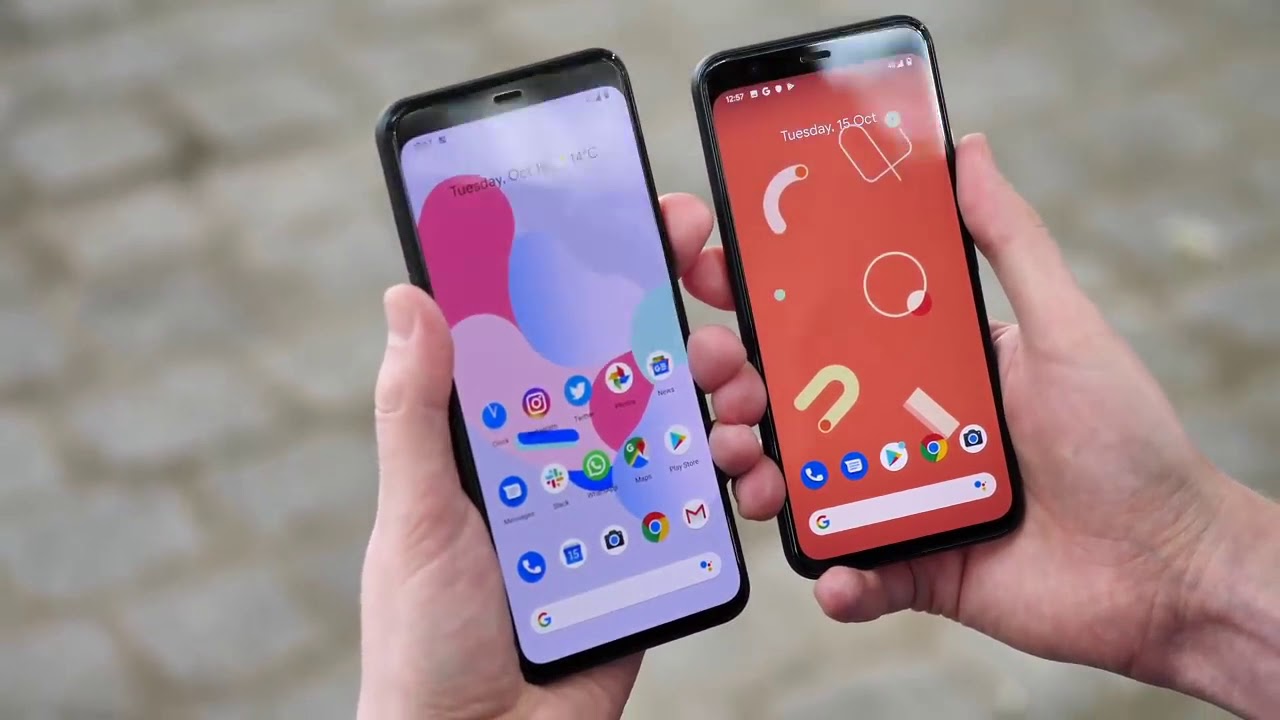
For many of us, a smartphone is practically an extension of ourselves. It holds everything: social media, games, photos, videos, contacts, books, movies, work documents, and even your 22Bet login details. When it’s time to upgrade your device, you want to make sure all of these digital essentials come with you. Fortunately, migrating your data between Android devices is a quick and straightforward process.
Migrating Your Contacts Between Android Devices
You’ll only need a couple of Android phones, a few minutes, and a little confidence. Here is exactly how to do it:
- Set up a Google account on your old phone if you haven’t already.
- Open your account settings and select the contacts you want to sync.
- Sign in to the same account on your new smartphone and wait for the selected information to download automatically.
A quick tip for the future: To instantly share information across your devices down the road, go to your new phone’s settings, find the “Accounts” section, select Google, and turn on automatic syncing.
Sharing via Bluetooth and Wi-Fi Direct
Another easy way to move contacts — along with documents and JPEG photos — is via Bluetooth. Just follow these steps:
- Open the settings on both smartphones.
- Turn on Bluetooth.
- On one phone, run a device search (often labeled “Scan for devices”).
- Select your second phone from the list of available devices.
- Enter the pairing code and confirm the connection.
- Select the files you want to transfer, tap “Share,” and choose “Bluetooth.”
- Select the receiving device, confirm the prompt, and complete the transfer.
You can use this exact same process to send files over Wi-Fi. In fact, utilizing Wi-Fi is highly recommended for larger, “heavier” files like high-resolution videos.
Moving Everything: Three Ways to Transfer All Your Data
If you need to move more than just contacts, there are three reliable methods to seamlessly migrate all your files to a new device.
Manual Syncing
Modern Android phones are designed to easily sync and exchange whatever data you choose. To set this up, check your main menu for a section titled “Sync,” “Accounts,” or “Users & Accounts.”
Inside that section, tap Add account. Enter the email address associated with your Google account, and hit Sync. Your file transfer will begin immediately.
Leveraging Google Services
If you are firing up a brand-new phone for the very first time, the setup wizard does most of the heavy lifting. The device will automatically prompt you to sign in to your Google account and guide you through retrieving all your old data.
Through your personal account, you can transfer almost everything: apps from the Google Play Store (or brand-specific stores like Huawei AppGallery), SMS text messages, your call log, system settings, and your Google account data. You can also transfer your photos and videos, provided you have them backed up to Google Photos.
Important note: If you bought a pre-owned phone, we highly recommend performing a factory reset first. Also, make sure both devices are fully charged and keep them plugged in during the process so the transfer isn’t interrupted.
To initiate the transfer, log in to Google on the phone you are moving files from, and follow these instructions:
- Connect both phones to the same Wi-Fi network.
- Back up your old phone by navigating to Settings → Accounts (or Google) → Backup. If you have enough space on your Google Drive, tap Back up now.
- Wait for the data to transfer over your Wi-Fi network.
Specialized Transfer Apps
If you like exploring different software, you can test out dedicated data transfer apps. Major brands like Samsung, Xiaomi, Huawei, and Honor have their own proprietary apps, and there are plenty of third-party options available as well.
Usually, you just install the app on both phones and launch the service. Keep in mind: entrusting your personal data to unverified, third-party companies always carries some risk, so choose wisely.
Here are five highly-rated programs that can get the job done:
- Smart Transfer: A versatile app that lets you move data between Androids, or back and forth between iOS and Android.
- InShare: Designed specifically for Android devices, this app lets you select exactly which files you want to move. It’s incredibly handy because it works via Bluetooth, meaning you don’t even need an active internet connection.
- Copy My Data: Great for moving calendars, photos, videos, and contacts over Wi-Fi. It works for both Android-to-Android and iOS-to-Android setups.
- Send Anywhere: To ensure privacy, this app requires a six-digit code or a QR code scan to initiate the transfer. It also works offline without Wi-Fi or mobile data.
- AirDroid: Perfect for copying files between two Androids or between your phone and a computer. It’s also a great tool for managing your phone directly from a PC and creating regular backups.
Choose whichever method fits your needs best. For the fastest, most streamlined experience, sticking with built-in Google services or trusted third-party applications is usually the way to go.